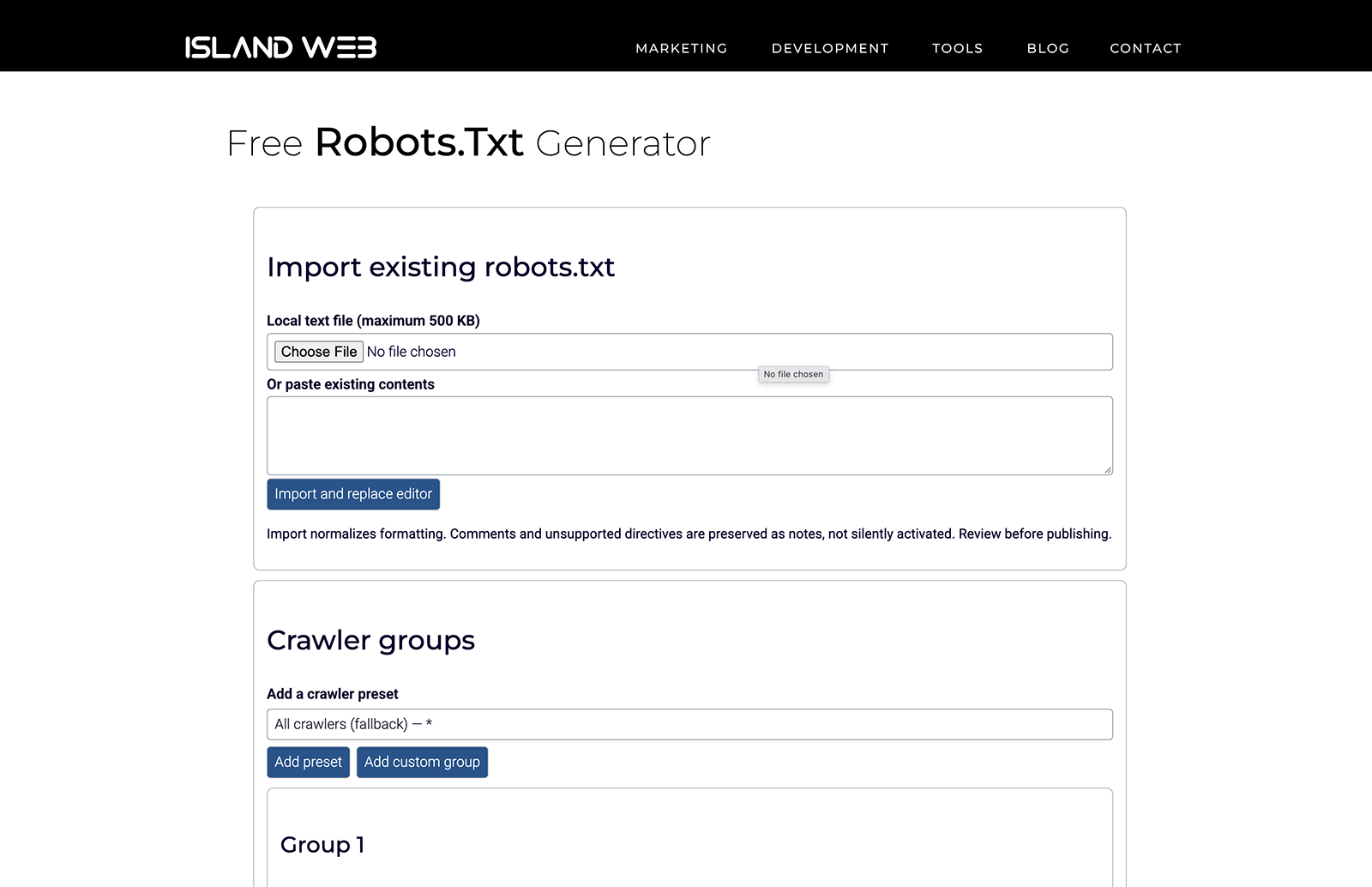
Import existing robots.txt
Import normalizes formatting. Comments and unsupported directives are preserved as notes, not silently activated. Review before publishing.
Crawler groups
XML sitemaps
Generated robots.txt
Test a URL
Local RFC 9309-style simulation; does not fetch a site or verify actual crawler behavior. Enter the crawler product token, not its full HTTP user-agent string.
How to Use the Robots.txt Generator, Editor and Tester
Our free Robots.txt Generator makes it easy to create, edit, and test robots.txt files without manually writing code. Configure search engine and AI crawler permissions, import existing files, create multiple user-agent groups, identify potential configuration problems, and test individual URLs before publishing your changes.
All processing takes place directly in your browser. Your imported files and crawler configurations are not uploaded to our server.
Step 1: Create a New Robots.txt File or Import an Existing One
If you are creating a robots.txt file for the first time, you can start with a new configuration using the generator's default settings.
If your website already has a robots.txt file, you have two options:
- Upload an existing file: Select a robots.txt file saved on your computer.
- Paste existing content: Copy the contents of your current robots.txt file and paste them into the import field.
The tool converts supported directives into editable crawler groups, path rules, crawl-delay settings, and sitemap references.
Imported comments and unsupported directives are retained as commented notes. Always compare the generated output with your original file to ensure that important instructions have not been changed or omitted.
Step 2: Select Search Engine and AI Crawlers
Use the crawler preset menu to select the search engine or AI service you want to configure. You can also manually enter a custom user-agent identifier.
Available presets include traditional search engines such as Google, Bing, and DuckDuckGo, as well as crawlers associated with OpenAI, Anthropic, Perplexity, and other AI services.
Different crawlers serve different purposes:
- Search engine crawlers discover content for traditional search results.
- AI search crawlers discover information that may appear in AI-powered search results and answers.
- AI training crawlers collect content that may be used for model development.
- User-requested retrieval agents retrieve information in response to individual user requests.
The tool also includes Google-Extended, a control token associated with certain Google AI content uses rather than a separate web crawler.
Select the appropriate user agents based on your website's visibility goals and content usage policies. Always consult the provider's official documentation, as crawler purposes and policies may change.
Step 3: Create and Manage Multiple User-Agent Groups
The upgraded Robots.txt Generator allows you to create multiple groups, each containing its own crawler identifiers and access rules.
Use the wildcard user agent (*) to establish default rules for crawlers that do not have a more specific matching group. Create additional groups when you want different crawlers to follow different instructions.
For example, you might want to:
- Allow traditional search engines to crawl your public content.
- Allow AI search crawlers to discover your products and services.
- Restrict crawlers associated with AI model training.
- Prevent compliant crawlers from accessing administrative directories.
Remember that crawler-specific groups do not automatically inherit rules from the wildcard group. Include all applicable restrictions in each specific group where necessary.
Step 4: Configure Allow and Disallow Rules
Add individual path rules to each user-agent group to define which areas of your website compliant crawlers may access.
Disallow requests that a crawler avoid matching URL paths. For example:
Allow permits crawling of matching paths and can create exceptions to broader restrictions. For example:
The generator also supports commonly used path-matching characters:
- Asterisk (*): Matches zero or more characters.
- Dollar sign ($): Indicates the end of a URL path and query string.
For example, the following rule requests that supporting crawlers avoid URLs ending in .pdf:
Be especially careful when entering a Disallow rule containing only a forward slash. This requests that the applicable crawler avoid your entire website.
Robots.txt rules are not security controls. Private information and restricted directories should be protected through authentication and appropriate server-side access restrictions.
Step 5: Configure Optional Crawl-Delay Settings
If necessary, enter a crawl-delay value for a user-agent group. This directive requests that supporting crawlers wait between requests to your website.
Crawl-delay may be useful for websites experiencing excessive automated traffic or operating with limited server resources.
However, not all crawlers support this directive. Googlebot, for example, does not recognize Crawl-delay in robots.txt.
The generator provides warnings about crawler compatibility to help you avoid relying on unsupported instructions. For most websites, this setting can be left blank.
Step 6: Add Your XML Sitemap URLs
Enter the complete URL of your website's XML sitemap. If your website uses multiple sitemaps or sitemap indexes, you can add additional references.
For example:
Sitemap: https://www.example.com/blog-sitemap.xml
The generator checks sitemap URL syntax and identifies duplicate entries. Sitemap references must use complete HTTP or HTTPS URLs rather than relative file paths.
These checks do not confirm that the sitemap exists or contains valid XML.
If you have not created a sitemap, use our free XML Sitemap Generator. You can also use our XML Sitemap Validator to check your published sitemap for formatting and structural errors.
Step 7: Review Configuration Errors and Warnings
As you configure your robots.txt file, the tool automatically examines your settings for potential problems.
The built-in configuration checks can identify:
- Invalid or missing user-agent identifiers.
- Incorrectly formatted path rules.
- Duplicate directives.
- Identical paths with opposing Allow and Disallow rules.
- Rules that request site-wide crawler blocking.
- Invalid or duplicate sitemap URLs.
- Invalid crawl-delay values.
- Potential crawler compatibility issues.
- Unsupported imported directives.
Errors indicate configuration problems that must be corrected before exporting the file. Warnings identify potential concerns that may or may not be intentional.
For example, blocking a model-training crawler may be part of your content usage policy, while accidentally blocking Googlebot could interfere with your website's search engine visibility.
Review every warning before publishing your configuration.
Step 8: Test Individual URLs With the Robots.txt Tester
The integrated Robots.txt Tester allows you to evaluate how your generated rules apply to individual URLs and crawlers before uploading the file to your website.
To test a URL:
- Select or enter the crawler's user-agent identifier.
- Enter a complete webpage URL or a relative URL path.
- Run the URL test.
- Review whether the URL is allowed or disallowed under the generated rules.
The tester evaluates applicable user-agent groups, wildcard patterns, URL paths, query strings, and competing Allow and Disallow directives.
It also identifies the matching rule responsible for the result when applicable.
For example, consider a configuration containing these rules:
Disallow: /admin/
Allow: /admin/public/
Testing /admin/settings/ would return a disallowed result, while testing /admin/public/ would return an allowed result because the more specific Allow rule takes precedence.
We recommend testing your homepage, important service pages, product pages, blog articles, restricted directories, and essential website resources before publishing your robots.txt file.
The tester evaluates the configuration locally. It does not contact your website or guarantee that every crawler will interpret or follow the rules in the same way.
Step 9: Review the Generated Robots.txt File
The live preview automatically updates as you modify your crawler groups, path rules, crawl-delay settings, and sitemap references.
Review the complete generated file to confirm that:
- Important search engine crawlers can access your public content.
- AI crawler permissions reflect your organization's goals.
- Restricted paths are assigned to the intended user agents.
- Important website resources remain accessible.
- Sitemap references are correct.
- All configuration errors have been resolved.
If you imported an existing robots.txt file, compare the generated version with your original file before replacing it.
You can return to any section of the editor and make additional changes without starting over.
Step 10: Copy or Download Your Robots.txt File
Once you are satisfied with your configuration and URL test results, use the copy or download option to export your generated file.
The download option creates a plain-text robots.txt file directly in your browser. No account, software installation, or server-side file processing is required.
If you want to start a completely new configuration, use the Reset option to clear your current settings.
Step 11: Upload and Verify Your Robots.txt File
Upload the generated robots.txt file to the root directory of the website origin you want to configure.
For example:
https://www.example.com/robots.txt
The filename should be lowercase and the file should be publicly accessible.
Remember that robots.txt applies to the specific protocol, hostname, and port where it is published. Separate subdomains may require their own robots.txt files.
After uploading the file, open its URL in your browser to confirm that the correct content is being served. You can also use Google Search Console, server access logs, and other webmaster tools to investigate crawling problems.
Search engines and other crawlers may cache robots.txt files, so changes may not take effect immediately.
Understanding the Limitations of Robots.txt Testing
Our Robots.txt Generator, Editor and Tester helps identify common configuration problems and evaluate crawler access rules before publication. However, robots.txt is a voluntary protocol, and individual crawlers may support different directives or interpret certain rules differently.
A robots.txt file cannot guarantee that a webpage will be excluded from search results, prevent unauthorized access to private content, or guarantee that your website will appear in AI-generated answers.
For comprehensive technical SEO, robots.txt configuration should be used alongside XML sitemap validation, canonical URL checks, robots meta directives, HTTP header inspection, and regular website audits.
What Is a Robots.txt File and How Does It Work?
A robots.txt file is a simple text file that tells search engine crawlers which parts of your website they are allowed to access. It uses a set of instructions, called directives, to help manage how automated bots crawl your website. For example, you might allow search engines to crawl your public pages while asking them to avoid administrative areas, internal search results, or other sections that don't need to be crawled.
The robots.txt file is placed in the root directory of your website, making it accessible at an address such as https://www.example.com/robots.txt. When a compliant search engine crawler visits your website, it checks this file to determine which URLs it can crawl. The instructions apply to the specific hostname and protocol where the file is hosted.
Our free Robots.txt Generator makes it easy to create a properly formatted file without writing the directives manually. Choose which crawlers your rules apply to, add Allow or Disallow instructions, include your XML sitemap URLs, and preview the generated file. Once you're satisfied, copy the text or download the robots.txt file and upload it to your website.
Understanding Allow and Disallow Directives
The two most commonly used robots.txt directives are Allow and Disallow. They determine which URL paths a crawler may access.
Disallow tells compliant crawlers not to access a specified path. For example:
Disallow: /private/
This instructs all compliant crawlers to avoid URLs beginning with /private/.
Allow explicitly permits crawling of a specified path. It's particularly useful when you want to make an exception within a larger blocked directory.
Disallow: /private/
Allow: /private/public/
In this example, crawlers are instructed to avoid the /private/ directory but may access URLs beginning with /private/public/.
The User-agent: * directive means the rules apply to all crawlers that don't have a more specific matching group. You can also create rules for particular crawlers, such as Googlebot or Bingbot.
When Allow and Disallow rules overlap, major search engines such as Google generally use the most specific matching rule. If equally specific rules conflict, Google favors Allow. Other crawlers may interpret certain rules differently.
How to Avoid Accidentally Blocking Search Engines
A mistake in your robots.txt file can prevent search engines from crawling important pages on your website. One of the most serious mistakes is accidentally using:
Disallow: /
This tells compliant crawlers not to crawl any URLs on the website. While this may be intentional for certain environments, it can cause significant SEO problems if placed on a live public website.
To avoid accidental blocking, review your robots.txt file before uploading it. Pay particular attention to broad Disallow rules, verify that important pages and resources remain crawlable, and check that your XML sitemap URLs are correct. You should also test the file after publishing it and whenever you make major website changes.
Remember that robots.txt controls crawling, not indexing or security. A blocked page can sometimes still appear in search results if search engines discover its URL through external links. If you want a public page excluded from search results, use an appropriate noindex directive while allowing search engines to access the page. For confidential information, use authentication or other access controls instead of relying on robots.txt.
Managing AI Crawlers With Robots.txt
Website crawling is no longer limited to traditional search engines such as Google and Bing. Artificial intelligence platforms may also use automated crawlers to discover information, retrieve website content, support AI-generated answers, or collect data for model development.
Different AI services may operate separate crawlers for different purposes. A crawler used to support AI-powered search results may have a different user-agent identifier from one used to collect training data.
Before restricting AI crawlers, determine what you want to accomplish. A business that wants to appear in AI-generated answers may have different requirements from a publisher that wants to restrict the use of its content for model training.
Should You Block AI Crawlers?
There is no single robots.txt configuration that is appropriate for every website. Consider your business goals, content licensing requirements, server resources, and desired visibility across search engines and AI platforms.
Blocking all automated crawlers may prevent legitimate services from retrieving important content. On the other hand, selectively restricting certain crawlers may help support your organization's content usage policies.
Always consult the AI provider's official crawler documentation before configuring crawler-specific rules. User-agent identifiers, crawler purposes, and access policies can change over time.
Robots.txt, AEO, and GEO
Answer Engine Optimization (AEO) and Generative Engine Optimization (GEO) involve making website information accessible, understandable, and useful to systems that generate answers and recommendations.
Crawler accessibility is one component of this process. Clear content, accurate structured data, strong internal linking, reliable information, and technical website performance are also important considerations.
A robots.txt file cannot guarantee that your website will appear in AI-generated answers, just as allowing Googlebot does not guarantee high search engine rankings.
Visit our SEO, AEO, and GEO services page to learn more about optimizing your website for traditional search engines and emerging AI-powered discovery platforms.
Frequently Asked Questions About Robots.txt
What is a robots.txt generator?
A robots.txt generator is an online tool that helps website owners create instructions for search engine crawlers. Instead of manually writing a robots.txt file, users select crawler settings, add Allow and Disallow rules, and enter sitemap URLs. The tool then generates a formatted file that can be downloaded and uploaded to a website.
Does every website need a robots.txt file?
No. A robots.txt file is optional. If your website doesn't have one, compliant search engine crawlers can generally attempt to crawl publicly accessible URLs. However, a robots.txt file can be useful for managing crawler access, reducing unnecessary crawling, and providing a reference to your XML sitemap.
Where should I upload my robots.txt file?
Your robots.txt file should be placed at the root of the hostname you want to control. For example, a file uploaded for https://www.example.com/ should be accessible at https://www.example.com/robots.txt. A file placed in a subdirectory, such as /blog/robots.txt, does not control crawling for the entire website.
What does User-agent: * mean in robots.txt?
The asterisk (*) is a wildcard that represents all crawlers that don't match a more specific user-agent group. For example, User-agent: * followed by Disallow: /admin/ asks compliant crawlers to avoid URLs beginning with /admin/.
What is the difference between Allow and Disallow?
Disallow tells compliant crawlers not to access a specified URL path, while Allow permits crawling of a specified path. Allow is particularly useful for creating exceptions within blocked directories. The most specific matching rule generally determines access for crawlers that follow Google's robots.txt interpretation.
Can robots.txt prevent pages from appearing in Google search results?
Not reliably. Robots.txt controls crawling rather than indexing. A blocked URL may still appear in search results if Google discovers it through links or other sources. To prevent a page from being indexed, use a noindex directive that Google can actually access, or protect the content with authentication when privacy is required.
Can I block only Googlebot or Bingbot?
Yes. You can create crawler-specific groups using the appropriate user-agent name.
For example:Disallow: /example/
This asks Googlebot not to crawl URLs beginning with /example/. Other crawlers are not covered by that group unless separate rules apply to them.
What does Crawl-delay mean in robots.txt?
The Crawl-delay directive requests a waiting period between crawler requests, usually expressed in seconds. Some crawlers recognize this directive, but support varies. Googlebot does not support Crawl-delay, so including it will not control Google's crawling speed.
Should I include my XML sitemap in robots.txt?
Including an XML sitemap reference is a useful practice because it helps search engines discover your sitemap. You can add a line such as:
The sitemap URL should be an absolute URL. You can include multiple Sitemap directives if your website has more than one sitemap.
Can I have multiple User-agent sections in one robots.txt file?
Yes. A robots.txt file can contain multiple user-agent groups, each with its own crawling instructions. For example, you can define general rules for all crawlers and separate rules for Googlebot or another specific crawler. Be aware that crawler-specific groups may take precedence over general wildcard groups, depending on the crawler's interpretation.
Can robots.txt block AI crawlers?
Some AI-related crawlers recognize robots.txt directives, allowing website owners to request that those crawlers avoid certain content. For example, GPTBot has a documented user-agent that website owners can address with crawler-specific rules. However, not every automated bot respects robots.txt, and different AI services use different crawlers and policies.
How can I check whether my robots.txt file is working?
First, open https://yourdomain.com/robots.txt in your browser to confirm that the file is accessible and contains the expected rules. You can then use Google Search Console's URL Inspection tool to investigate crawling and indexing issues. Reviewing server logs can also help identify crawler activity. Always test important URLs after changing your robots.txt file.
What are the most common robots.txt mistakes?
Common mistakes include accidentally blocking the entire website, using incorrect paths, placing the file in the wrong directory, and assuming that Disallow prevents indexing. Other problems include blocking important CSS or JavaScript resources, creating conflicting crawler groups, and forgetting to remove restrictive rules after moving a staging website into production.
Does robots.txt improve SEO rankings?
A robots.txt file does not directly improve search rankings. Its main purpose is to manage crawler access. When configured correctly, it can help search engines avoid unnecessary URLs and spend more time crawling useful content, particularly on larger websites. However, incorrect rules can prevent important pages from being crawled and negatively affect search visibility.