Analyze website images for missing, empty, duplicate, generic, and filename-based alternative text with our free Image Alt Text Checker and Accessibility Analyzer. Check an individual webpage, analyze multiple URLs, or sample webpages from an XML sitemap.
Review image audit statistics, inspect alternative text alongside optional image thumbnails, identify potential accessibility problems, and examine HTML image attributes including dimensions, lazy loading, responsive image sources, and linked images.
Filter and search your results, investigate potential problems, and export detailed CSV reports. Our free tool helps web developers, SEO professionals, accessibility specialists, and website owners improve image optimization and evaluate alternative text across multiple webpages.
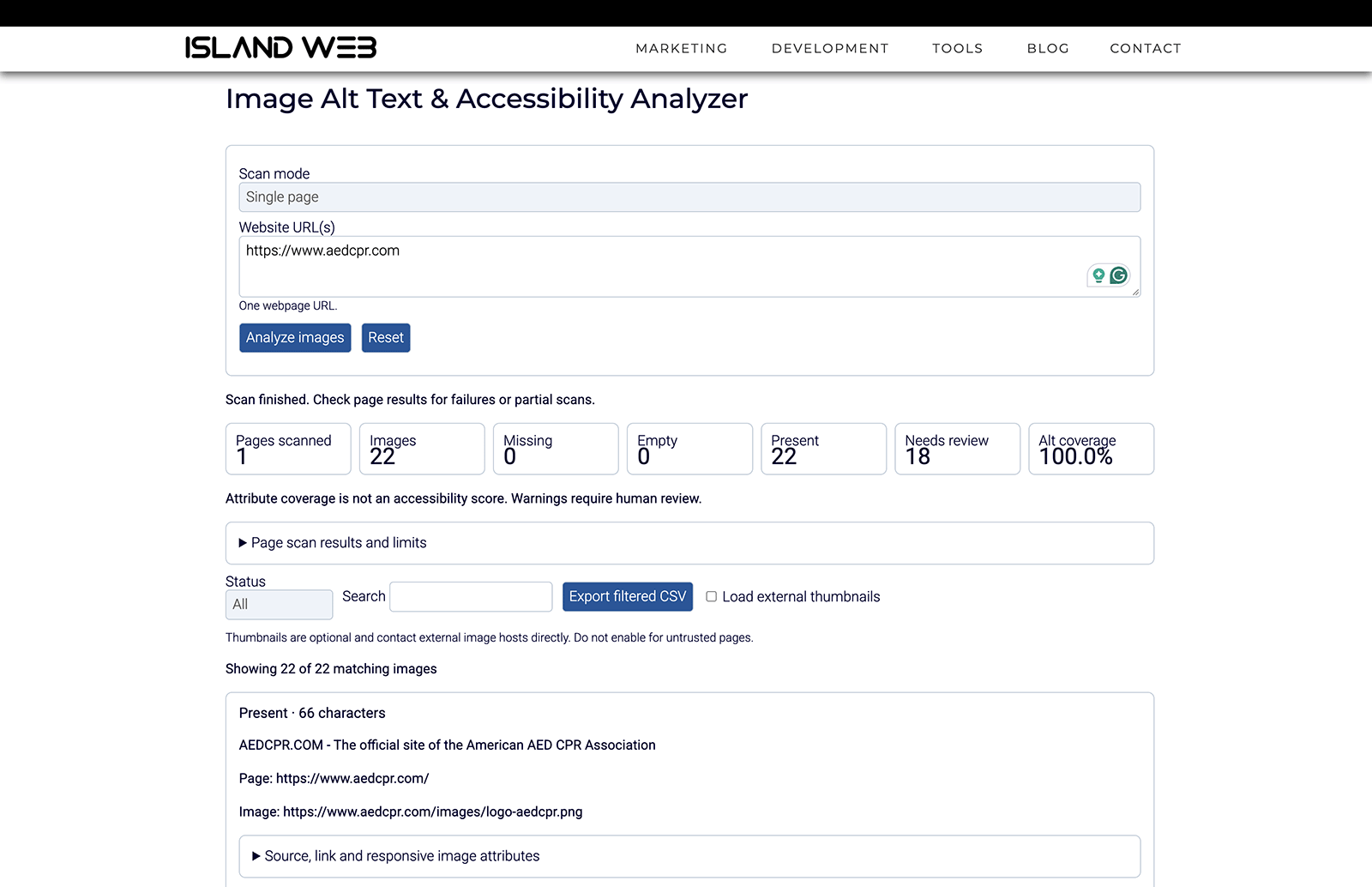
Image Alt Text & Accessibility Analyzer
Attribute coverage is not an accessibility score. Warnings require human review.
Page scan results and limits
How to Use the Image Alt Text Checker
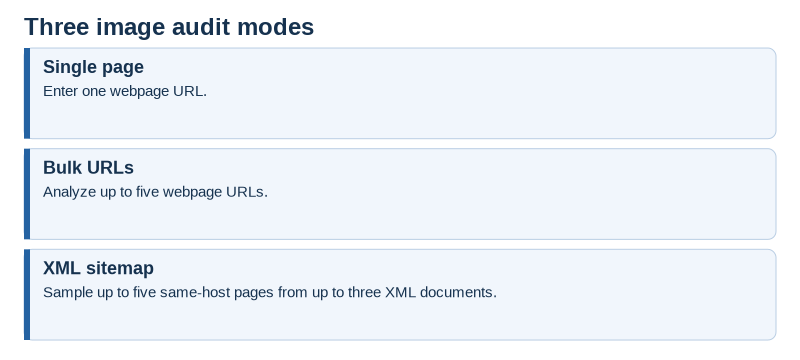
Our free Image Alt Text Checker offers three analysis modes to help you evaluate image attributes across individual webpages or multiple pages of a website.
Step 1: Select a Scan Mode
Choose Single page, Bulk URLs, or XML sitemap from the Scan mode menu.
Step 2: Enter Your Website URLs
Enter one webpage URL, up to five webpage URLs on separate lines, or the URL of an XML sitemap, depending on your selected scan mode.
Step 3: Analyze Website Images
Click Analyze images to retrieve the webpage HTML and examine image elements, alternative text, and related image attributes.
Step 4: Review the Image Audit Dashboard
Review the number of pages scanned, total images, missing, empty, and present alt attributes, images requiring review, and alt attribute coverage.
Step 5: Review Page Scan Results
Expand Page scan results and limits to identify unsuccessful requests, partial scans, and applicable sitemap scanning restrictions.
Step 6: Filter and Search Results
Use the status filter and search field to locate missing or empty alt attributes, linked images, existing descriptions, and images requiring review.
Step 7: Inspect Individual Images
Review alternative text, character counts, source pages, image URLs, and warnings. Expand Source, link and responsive image attributes for additional HTML attribute information.
Step 8: Enable Optional Image Thumbnails
Select Load external thumbnails to visually compare supported HTTPS images with their alternative text. Only enable thumbnails for trusted websites because images are loaded directly from external hosts.
Step 9: Export Your Image Audit Report
Click Export filtered CSV to download the matching image results, including alternative text, warnings, source information, and image attributes.
Step 10: Correct Problems and Test Again
Update inappropriate or missing alternative text and correct relevant HTML image attributes. Click Reset to clear the analysis and repeat your tests.
Three Ways to Check Website Image Alt Text
Single Webpage Analysis
Analyze an individual webpage to review its images and alternative text. This mode is useful when publishing new content, reviewing product pages, or testing website updates.
Bulk Image Alt Text Checking
Analyze up to five webpage URLs in a single request. Bulk analysis is particularly useful for comparing landing pages, product pages, blog articles, and website templates.
XML Sitemap Image Analysis
Enter the URL of an XML sitemap or sitemap index to discover and analyze a sample of up to five same-host webpages. This allows you to investigate image optimization problems without manually entering individual page addresses.
Sitemap mode processes up to three XML documents. It is a limited sample rather than a complete website crawl. Compressed sitemap files are not currently supported.
Use our XML Sitemap Generator and XML Sitemap Validator to create and review your website sitemaps.
Understanding Your Image Audit Results
| Metric | Meaning |
|---|---|
| Pages scanned | Pages successfully processed, including any reported partial scans. |
| Images | Total image elements included in the analysis. |
| Missing | Images without an alt attribute. |
| Empty | Images with empty or blank alt attributes. |
| Present | Images with non-empty alt attributes. |
| Needs review | Images with one or more potential problems identified by the analyzer. |
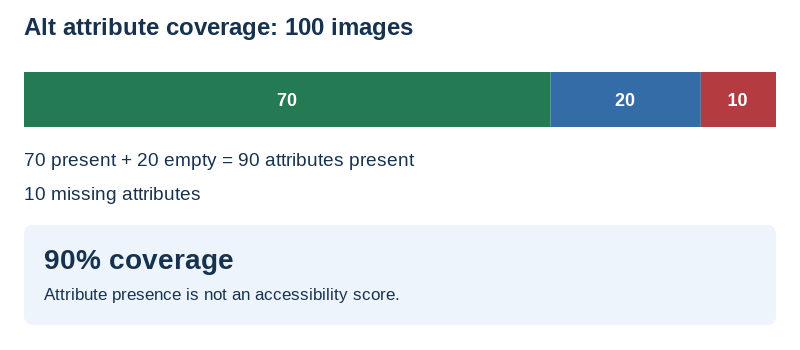
| Alt coverage | Percentage of analyzed images containing an alt attribute. |
Alt attribute coverage includes both empty and non-empty attributes. A website with 100% coverage may still contain inappropriate or inaccurate alternative text.
What Is Image Alt Text?
Image alt text, or alternative text, communicates the meaningful content or purpose of an image. In HTML, it is typically provided through the alt attribute of an img element.
<img src="running-shoes.webp"
          alt="Blue running shoes with white mesh uppers">
Screen readers use appropriate text alternatives to communicate visual information. Browsers may display alternative text when images cannot load. Search engines also use alt text and surrounding content to better understand images.
Missing, Empty and Descriptive Alt Attributes
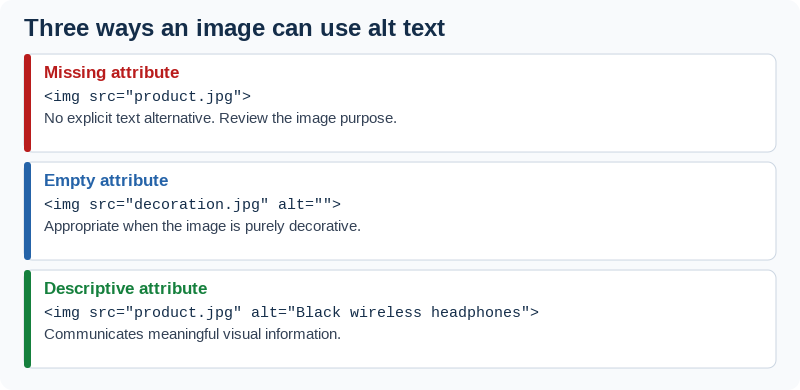
Missing Alt Attribute
<img src="product.jpg">The image has no explicit alt attribute and its accessibility should be reviewed.
Empty Alt Attribute
<img src="decoration.svg" alt="">An intentionally empty alt attribute is appropriate for purely decorative images that communicate no additional meaningful information.
Descriptive Alt Attribute
<img src="product.jpg"
          alt="Black wireless headphones with padded ear cups">
A descriptive attribute communicates relevant information about an informative image.
Choosing Alt Text Based on Image Purpose
| Image type | Recommended alternative |
|---|---|
| Informative photograph | Describe relevant visual information. |
| Decorative image | Use an intentionally empty alt attribute. |
| Product image | Describe relevant product characteristics. |
| Linked image or button | Communicate the destination or action when needed for an accessible name. |
| Company logo | Communicate identity or link purpose. |
| Chart or infographic | Provide a concise alternative and additional detailed information when needed. |
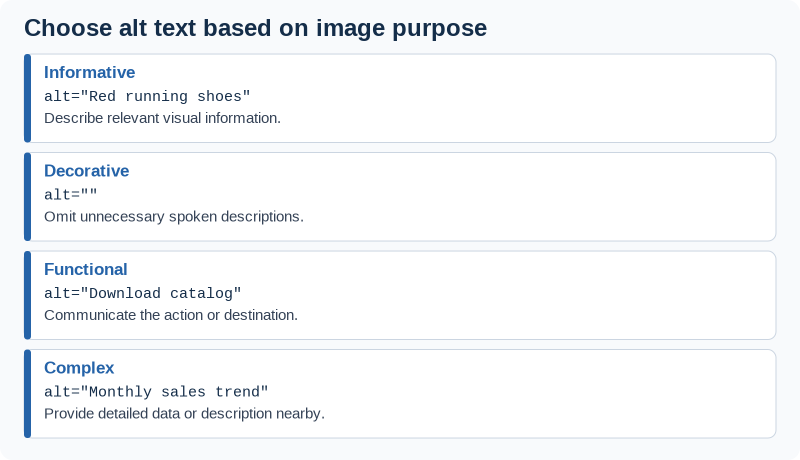
Use the W3C Web Accessibility Initiative's alt text decision tree for additional guidance.
Identifying Potential Alt Text Problems
The Image Alt Text Checker identifies several common patterns that may indicate inappropriate or ineffective alternative text.
Generic Alt Text
Descriptions such as "image", "photo", and "picture" may provide insufficient information about an image's meaningful content.
Filename-Based Alt Text
Image filenames such as IMG_4567.jpg are rarely useful text alternatives. The analyzer flags filename-like descriptions for review.
Duplicate Alt Text
Repeated descriptions across analyzed images may indicate automatically generated or insufficiently specific alternative text. Repetition can be appropriate when images communicate the same information.
Long Alt Text
Descriptions exceeding 150 characters are flagged for review. This is a practical review threshold, not an HTML or WCAG character limit.
Linked Images
Images contained within links may contribute to the accessible name of those links. The tool flags certain linked images with missing or empty alternative text for further evaluation.
These warnings are automated heuristics, not confirmed accessibility violations.
How to Write Effective Image Alt Text
- Describe the meaningful content or purpose of the image.
- Use concise, accurate, natural language.
- Include relevant keywords only when appropriate.
- Avoid keyword stuffing and generic descriptions.
- Avoid repeating information unnecessarily.
- Describe the action or destination of functional images.
- Use empty alt attributes for decorative images.
- Review automatically generated alternative text for accuracy and context.

Analyze HTML Image Attributes and Responsive Images
In addition to alternative text, the analyzer reports image attributes that are useful when evaluating website performance, responsive layouts, and image implementation.
| Attribute | Purpose |
|---|---|
| src | Primary image source. |
| srcset | Alternative image source candidates. |
| sizes | Expected responsive image display size. |
| width and height | Declared image dimensions that can help reserve layout space. |
| loading | Lazy or eager loading behavior. |
| decoding | Image decoding preference. |
| fetchpriority | Browser resource priority hint. |
| title | Supplementary advisory information. |
| data-src and related attributes | Common JavaScript lazy loading sources. |
| role and aria-hidden | Accessibility-related attributes. |
The tool also reports source attributes within associated picture elements when available. It does not download and measure image files or determine which responsive source a browser actually selects.
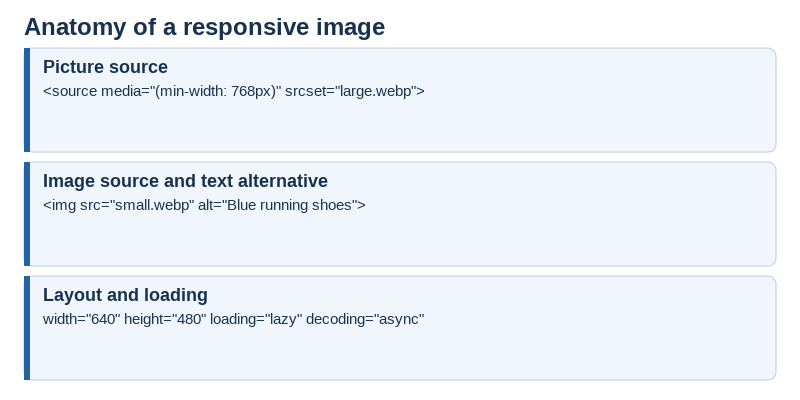
Use our Responsive Website Preview, Image Aspect Ratio Calculator, and WebP and AVIF Image Converter for additional image optimization tasks.
Image Alt Text and Website Accessibility
WCAG Success Criterion 1.1.1 addresses text alternatives for non-text content. Appropriate alternatives help people using assistive technology access meaningful visual information.
Automated checks cannot determine whether every image has an appropriate description. Human evaluation is necessary to understand image purpose, context, and accessible names.
Review the WCAG guidance for non-text content and use our Website Accessibility Checklist, Color Contrast Checker, and HTML Heading Structure Checker to investigate additional accessibility requirements.
Image Alt Text, SEO, AEO and GEO
Meaningful alternative text helps search engines understand image content. Descriptive filenames, relevant surrounding content, captions, and crawlable image URLs also contribute useful context.
For e-commerce websites, accurate product image descriptions can communicate colors, materials, styles, and distinguishing product characteristics.
Alternative text also provides machine-readable information that may help answer engines and generative AI systems interpret website content. However, different systems process images differently, and alt text does not guarantee improved rankings or inclusion in AI-generated answers.
Review Google's image SEO best practices for additional recommendations.
Explore our Technical SEO and SEO, AEO and GEO services for professional website optimization.
Export Image Alt Text Audit Reports
Download filtered image analysis results as a CSV file for use in spreadsheets, client reports, and website maintenance workflows.
Reports include source pages, image URLs, alternative text status, descriptions, character counts, review warnings, link information, image attributes, and responsive image sources.
Apply a filter before exporting to create a targeted report of missing attributes, linked images, or images requiring further review.
Image Alt Text Checker Limits
- Up to five webpage URLs per bulk analysis.
- Up to five sampled webpages from an XML sitemap.
- Up to three XML sitemap documents per analysis.
- Up to 150 images per webpage.
- Up to 500 images per analysis.
- Additional response size, request and time limits apply.
The tool analyzes retrieved HTML rather than executing website JavaScript. Dynamically generated images, CSS background images, inline SVG graphics, and other non-HTML-image content may require additional inspection.
Review reported partial scans before drawing conclusions. This tool assists with image audits but does not certify accessibility compliance or automatically generate alternative text.
Frequently Asked Questions
What is an image alt text checker?
An image alt text checker analyzes website images to identify missing, empty, and existing alt attributes and potential alternative text problems.
Is the Image Alt Text Checker free?
Yes. All three analysis modes, image attribute inspection, result filtering, and CSV reporting are free to use.
Can I check multiple webpages at once?
Yes. Bulk URLs mode supports up to five webpage URLs per analysis.
Can I analyze images using an XML sitemap?
Yes. XML sitemap mode samples up to five same-host webpages from up to three standard XML sitemap or sitemap index documents.
Does the tool scan an entire website?
No. Sitemap analysis examines a limited sample of webpages rather than crawling the entire website.
What does alt attribute coverage mean?
Alt attribute coverage is the percentage of analyzed images containing an alt attribute, including both empty and non-empty attributes.
Is empty alt text an accessibility error?
No. An intentionally empty alt attribute is appropriate for purely decorative images.
Does the tool detect duplicate alt text?
Yes. Repeated non-empty alternative text across analyzed images is flagged for contextual review.
Can the tool identify generic alt text?
Yes. Common generic and filename-like descriptions are flagged as potential problems requiring review.
How long should image alt text be?
Use concise descriptions that communicate necessary information. The tool flags descriptions exceeding 150 characters for review, but this is not a WCAG limit.
Does the tool analyze linked images?
Yes. The analyzer identifies images contained within links and flags certain potential accessible-name problems.
Can I view image thumbnails?
Yes. Enable optional external thumbnails to preview supported HTTPS images. Thumbnails are loaded directly from external image hosts.
Does the tool inspect responsive images?
Yes. It reports srcset, sizes, and associated picture source attributes when available in the retrieved HTML.
Does the tool check lazy loading attributes?
Yes. The analyzer reports loading attributes and common lazy loading source attributes found in the HTML.
Does the tool measure actual image dimensions?
No. It reports declared HTML width and height attributes rather than measuring the image files.
Can I export the image audit results?
Yes. Export filtered CSV downloads matching image results, descriptions, warnings, and source attributes.
Does image alt text improve SEO?
Meaningful alternative text helps search engines understand image content and may support image search visibility. It does not guarantee improved rankings.
Does the tool analyze JavaScript-generated images?
No. The tool analyzes retrieved HTML without executing the target website's JavaScript.
Does the tool automatically generate alt text?
No. It identifies potential problems with existing image attributes rather than generating new descriptions.
Does the Image Alt Text Checker guarantee WCAG compliance?
No. Automated image analysis assists accessibility testing but cannot replace human evaluation or a comprehensive accessibility audit.
Need Professional Website Accessibility or SEO Assistance?
Island Web Studios is your one-stop shop for website development and digital marketing. We help businesses improve website accessibility, usability, search visibility, and technical implementation.
Explore our Website Design, Full-Stack Web Development, Website Maintenance, Technical SEO, and SEO, AEO and GEO services.